| Wiki Sections |
|---|
| AWS FreePBX |
| FreePBX General |
 TheWebMachine Networks Support Wiki
The Home of AWS FreePBX® - A division of Rebar IT Outsourcing
User Tools
Site Tools
Sidebar
aws_freepbx:ec2_security_groups
Table of Contents
Proper EC2 Security Group Ports
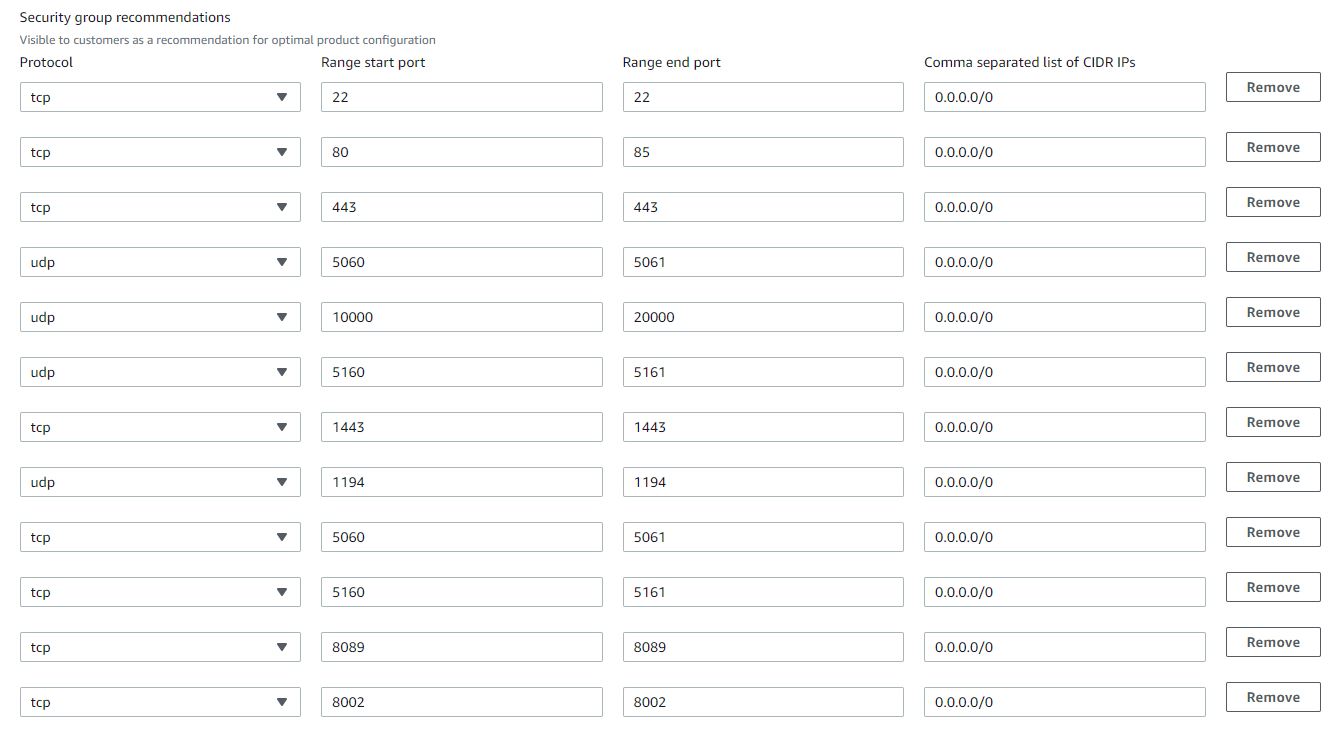
In order for AWS FreePBX to function properly, a number of ports need to be accessible from the outside world. These include ports for things such as the SIP signaling and web server. In order to help clarify things for those with existing instances, if you have changed your Security Group and want to revert to defaults, or if you are simply unsure what all these ports are for, this page will outline our default Security Group/open ports for AWS FreePBX for your reference.
Your EC2 Security Group for AWS FreePBX should look like the following by default. Note that we are only concerned with the Inbound tab and that the “Source: 0.0.0.0/0” is the “Anywhere” option when editing the rules:
PBX Admin Access
| PORT | TCP/UCP | PURPOSE | CHANGING PORT | SECURITY | NOTES |
|---|---|---|---|---|---|
| 22 | TCP | SSH Console | This can only be changed inside from inside Linux CLI and not recommended to be changed. | Not recommended to open this up to untrusted networks. | Port used to allow SSH to the PBX from the outside world. |
| 80 | TCP | PBX GUI HTTP (Non HTTPS) | Can change this port inside the PBX Admin GUI > System Admin Module > Port Management section. | Not recommended to open this up to untrusted networks. | |
| 443 | TCP | PBX GUI HTTPS | Can change this port inside the PBX Admin GUI > System Admin Module > Port Management section. | Not recommended to open this up to untrusted networks. | |
| 1194 | TCP/UDP | OpenVPN server | Change not supported | Can open to untrusted hosts | Used to connect OpenVPN clients to PBX VPN Server. |
PBX SIP and IAX Communication
| PORT | TCP/UCP | PURPOSE | CHANGING PORT | SECURITY | NOTES |
|---|---|---|---|---|---|
| 5060 | UDP | chan_PJSIP Signaling | Can change this port inside the PBX Admin GUI SIP Settings module. | Not recommended to open this up to untrusted networks. | Standard Port used for chan_PJSIP Signalling. |
| 5061 | TCP / UDP | chan_PJSIP Secure Signaling | Can change this port inside the PBX Admin GUI SIP Settings module. | Not recommended to open this up to untrusted networks. | Secure Port used for chan_PJSIP Signalling. |
| 5160 | UDP | chan_SIP Signaling | Can change this port inside the PBX Admin GUI SIP Settings module. | Not recommended to open this up to untrusted networks. | Standard Port used for chan_SIP Signalling. |
| 5161 | TCP / UDP | chan_SIP Secure Signaling | Can change this port inside the PBX Admin GUI SIP Settings module. | Not recommended to open this up to untrusted networks. | Secure Port used for chan_SIP Signalling. |
| 10000-20000 | UDP | RTP for SIP | Can change this port inside the PBX Admin GUI SIP Settings module. | Safe to open to the outside world and is required by most SIP Carriers as your RTP traffic can come from anywhere. | Used for the actual voice portion of a SIP Call. |
| 4569 | UDP | IAX | Can change this port inside the PBX Admin GUI IAX Settings module. | Not recommended to open this up to untrusted networks. | Used for IAX protocol and trunking |
| 4000-4999 | UDP | FAX UDPTL | Not configurable in the GUI, only by editing custom conf file. | Used for T38 fax media |
PBX User Control Panel (UCP)
| PORT | TCP/UCP | PURPOSE | CHANGING PORT | SECURITY | NOTES |
|---|---|---|---|---|---|
| 81 | TCP | PBX User Control Panel (UCP) HTTP (Non HTTPS) | Can change this port inside the PBX Admin GUI > System Admin Module > Port Management section. | Not recommended to open this up to untrusted networks as the traffic is not encrypted. Recommend using HTTPS version of PBX User Control Panel instead for remote users. | Port used to access the GUI portion of UCP |
| 4443 | TCP | PBX User Control Panel (UCP) HTTPS | Can change this port inside the PBX Admin GUI > System Admin Module > Port Management section. | Safe to open this up to untrusted networks as the traffic is encrypted and requires username and password authentication. | Port used to access the GUI portion of UCP with SSL encryption |
| 8088 | TCP | WebRTC Unencrypted Softphone Client | Can change this port inside the PBX Admin GUI > Advanced Settings > Asterisk Builtin mini-HTTP section > HTTP Bind Port | Not recommended to open this up to untrusted networks as the traffic is not encrypted. Recommend using HTTPS version | Used for the WebRTC portion of UCP |
| 8089 | TCP | WebRTC Encrypted Softphone Client | Can change this port inside the PBX Admin GUI > Advanced Settings > Asterisk Builtin mini-HTTP section > HTTPS Bind Port | Safe to open this up to untrusted networks as the traffic is encrypted with SSL and requires username and password authentication. | Used for the WebRTC portion of UCP |
| 8001 | TCP | Node Server | Can change this port inside the PBX Admin GUI > Advanced Settings > UCP NodeJS Server > NodeJS Bind Port | Not recommended to open this up to untrusted networks as the traffic is not encrypted. | Used by UCP with HTTP for Conf Rooms and Chatting and other products in UCP |
| 8003 | TCP | Node Server (secure) | Can change this port inside the PBX Admin GUI > Advanced Settings > UCP NodeJS Server > NodeJS HTTPS Bind Port | Safe to open this up to untrusted networks as the traffic is encrypted with SSL and requires username and password authentication. | Used by UCP with HTTPS for Conf Rooms and Chatting and other products in UCP |
PBX Phone Provisioning and Phone Apps
| PORT | TCP/UCP | PURPOSE | CHANGING PORT | SECURITY | NOTES |
|---|---|---|---|---|---|
| 84 | TCP | HTTP Provisioning for Phones (Non HTTPS) | Can change this port inside the PBX Admin GUI > System Admin Module > Port Management section. | Not recommended to open this up to untrusted networks as the traffic is not encrypted. Recommend using HTTPS Phone Provisioning option of instead for remote users. | Make sure if opening up outside access to enable username and password authentication for HTTP provisioning from the PBX Admin GUI System Admin > Provisioning Protocol. Inside EPM you define per template if the phones use TFTP, FTP, HTTP or HTTPS provisioning. In the past, http provisioning defaulted to port 83. When upgrading older systems, the port assignments to not change from their original settings. |
| 1443 | TCP | HTTPS Provisioning for Phones | Can change this port inside the PBX Admin GUI > System Admin Module > Port Management section. | Safe to open this up to untrusted networks as the traffic is encrypted as long as your enable username and password authentication as outlined in the Notes section. | Make sure if opening up outside access to enable username and password authentication for HTTP provisioning from the PBX Admin GUI System Admin > Provisioning Protocol. Inside EPM you define per template if the phones use TFTP, FTP, HTTP or HTTPS provisioning. |
| 21 | TCP | FTP Provisioning for Phones | This can only be changed inside from inside Linux CLI and not recommended to be changed. | Not recommended to open this up to untrusted networks as it has no ability encrypt traffic and is not NAT Friendly. Recommend using HTTPS provisioning for remote phones instead. | Used if your are having phones inside EPM use TFTP for provisioning. Inside EPM you define per template if the phones use TFTP, FTP, HTTP or HTTPS provisioning. |
| 69 | UDP | TFTP Provisioning for Phones | This can only be changed from inside Linux CLI and not recommended to be changed. | Not recommended to open this up to untrusted networks as it has no ability encrypt traffic and is not NAT Friendly. | Used if your are having phones inside EPM use TFTP for provisioning. Inside EPM you define per template if the phones use TFTP, FTP, HTTP or HTTPS provisioning. |
| 82 | TCP | Phone Apps HTTP (Non HTTPS) | Can change this port inside the PBX Admin GUI > System Admin Module > Port Management section. | Not recommended to open this up to untrusted networks as the traffic is not encrypted. Recommend using Phone Apps HTTPS option of instead for remote users. | Port used for phone apps to communicate with the PBX as HTTP not HTTPS traffic. Inside EPM you pick if the phone apps use HTTP or HTTPS. |
| 3443 | TCP | Phone Apps HTTPS | Can change this port inside the PBX Admin GUI > System Admin Module > Port Management section. | Safe to open this up to untrusted networks as the traffic is encrypted. | Port used for phone apps to communicate with the PBX using SSL encryption. Inside EPM you pick if the phone apps use HTTP or HTTPS. |
aws_freepbx/ec2_security_groups.txt · Last modified: by TheWebMachine Networks
Page Tools


