Table of Contents
Switching to/from IMAP Voicemail Storage
Now you can use your company's existing IMAP-compatible email server to store your voicemail! Give your users the convenience and ease of accessing their voicemail messages, complete with Caller ID information, right inside their email inbox! This has the added benefit of unifying storage of voicemail and email, making backups of data easier AND it alleviates storage needs on your AWS FreePBX instance. Your users will be bound by the same email storage quota for their voicemail messages and allow them an easier interface for managing messages. They can even organize their voicemail messages into folders just like their emails! This will allow your users to be more productive with more information at their fingertips in an instant, all from an interface they are already comfortable with.
IMPORTANT INFORMATION
- Switching VoiceMail Storage locations is an “all-or-nothing” process. All mailboxes must use EITHER LOCAL OR IMAP storage. You simply CANNOT have some mailboxes stored locally and some on your IMAP server
- You may have to supply the email PASSWORDS for every one of your voicemail users IF your email server doesn't support direct IMAP access to all user folders from a “postmaster” level account
- There is NO method available to migrate EXISTING voicemails and greetings between Local and IMAP storage. The methods used to store information in each location is different. When you switch from Local to IMAP, users lose access to their locally stored greetings and voicemails, but the old files will still exist in local storage (/var/spool/asterisk/voicemail). When you switch from IMAP to Local, users will still see the old IMAP folders with the old greetings and voicemails in their email. The switching process does NOT delete existing data from either location. As a result, if you switch a server between locations after it has been in production a while, you will have to clean out the old storage location yourself
- When using Voicemail in IMAP storage mode, you CANNOT use S3 Sync or Auto File Deletion services for Voicemail Messages. S3 Sync will still sync Voicemail Greetings if you elect to have those remain on Local storage
PREREQUISITES
- SSH Console access to your instance and basic knowledge of SmartUpgrade
- An IMAP enabled email server or hosted email service
- Username(s)\Password(s) for either:
- a “postmaster” account with read/write access to all user folders (you'll still need the email usernames for your users); or
- each of your users who will be using voicemail
- An understanding of how your email server handles IMAP folders
BEFORE YOU SWITCH
You need to determine how you will connect to your IMAP server. Either your IMAP server supports a single “postmaster” style account where a single username/password combination can log into all other mailboxes and you simply need the email usernames of your voicemail users - OR - you will need the email usernames AND PASSWORDS of every one of your voicemail users. You will want this information gathered before you make the switch to reduce your downtime. We recommend that you refer to your email server's documentation or support personnel to confirm whether or not your email server supports a master “postmaster” account to access all other mailboxes.
You will also want to give users a chance to listen to and make note of any new or old voicemail messages in their mailboxes on your existing Local storage system. They will be starting with a clean voicemail box and will need to record new greetings after the switch is complete. Make sure they are prepared for what they have to do. While you can manage voicemail messages via the email inbox, voicemail greetings will still need to be recorded by phone.
Plan your migration time appropriately!!! This process could take you several hours to completely setup. This is especially true if this is an existing production server, you have a lot of extensions, and/or you have to manually enter in the passwords of every individual email user account! While you are performing this switch, you will experience downtime in (up to) three phases:
- Switching of Asterisk VoiceMail Storage driver modules and restarting of all phone services
- ALL calling services will be OFFLINE for approximately 3-5 minutes
- Configuration of your mailboxes, if switching to IMAP
- ALL calling services, EXCEPT VM, will be ONLINE during this phase
- calls forwarded to VM boxes will receive an ERROR!
- One final restart of services, if switching to IMAP, to ensure all new IMAP information takes effect
- ALL calling services will be OFFLINE for approximately 3-5 minutes
PHASE 1 - SWITCHING VOICEMAIL STORAGE DRIVERS
During this first phase, we must connect to the SSH Console so we can run SmartUpgrade and switch the VM Storage drivers. If you are unfamiliar with connecting to your instance with SSH and/or using SmartUpgrade, please see the relevant guides.
After you are connected to your instance via SSH, you will want to run the following command to initiate the driver switch:
smartupgrade vm-storage-switch
You can also access vm-storage-switch from the SmartUpgrade EXPERT-MODE menu, in the Troubleshooting and Maintenance section.
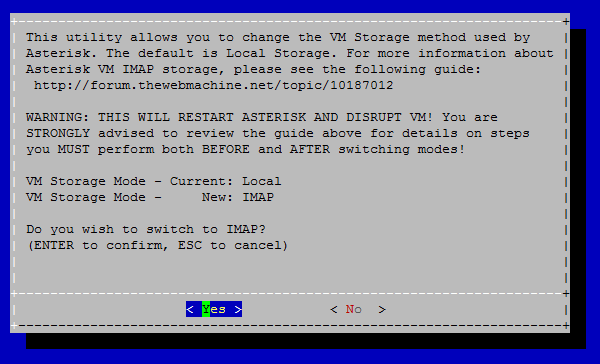
You will be presented with information (and a link to these instructions). You will be shown the current storage mode and asked to confirm to switch to the other mode. You can use your mouse to click Yes or No (if your SSH client supports it) or press Enter for Yes or ESC for No
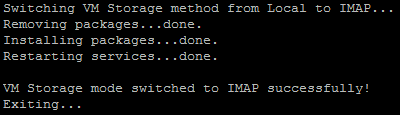
After the process is complete, you will be presented with a message acknowledging the switch was successful and the current mode.
If you just switched TO LOCAL, you are finished with this guide. If you just switched TO IMAP, proceed to PHASE 2 below…
PHASE 2 - CONFIGURE GENERAL SETTINGS AND EXTENSIONS FOR IMAP STORAGE
General Settings
Now we need to configure the General Settings for IMAP Voicemail Storage. For this phase, we will perform these tasks from the FreePBX GUI. You need the following information:
- The IP or FQDN and IMAP port # (default is 143) for your email server
- IF using a “postmaster” account to access all mailboxes, you will need that account username and password
- Your IMAP server's structure for users' mailbox directories. We will provide some common defaults in this guide, but your server may differ. If you don't have detailed information on your IMAP server's directory schema, this may require trial and error to get working properly
- Whether or not your email server has SSL or TLS support for IMAP enabled. Of course, SSL and/or TLS is highly recommended to encrypt your messages in transit between servers
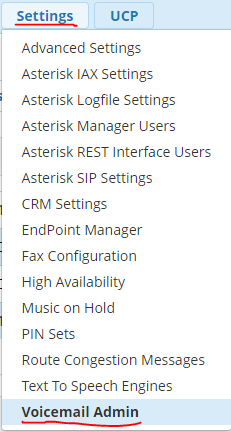
Choose Voicemail Admin from the Settings menu in the FreePBX GUI:
On the Voicemail Admin page, choose the main Settings tab in the top row, then choose the IMAP Storage tab in the second row:
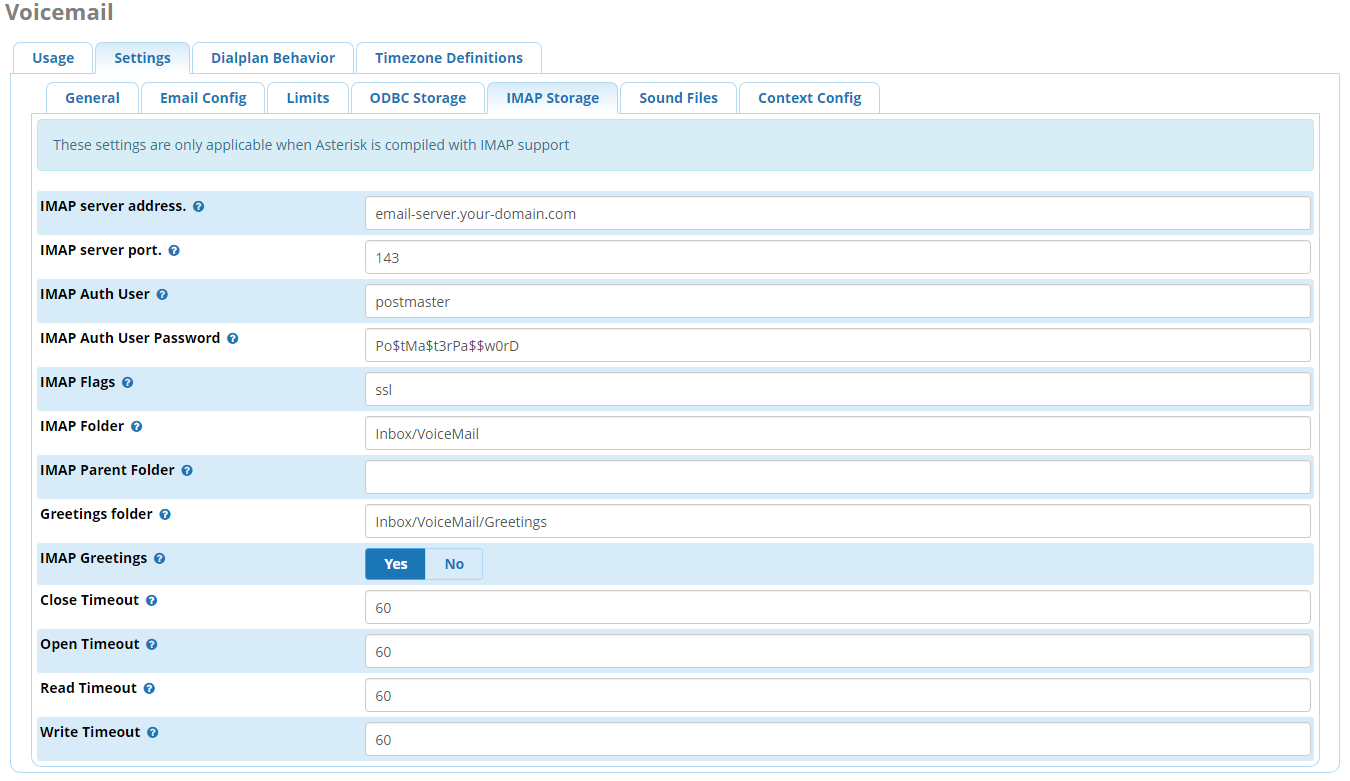
Fill in the necessary fields. Here's a description of each field on the page:
- IMAP Server Address = IP or FQDN of your email server
- IMAP Server Port = Your email server's IMAP port. Default is 143
- IMAP Auth User = This is the username for your admin-level “postmaster” account to access all mailboxes. YOU MUST LEAVE THIS BLANK IF YOU ARE USING INDIVIDUAL PASSWORDS FOR EACH MAILBOX!!!
- IMAP Auth User Password = This is the password for your master postmaster account to access all mailboxes. YOU MUST LEAVE THIS BLANK IF YOU ARE USING INDIVIDUAL PASSWORDS FOR EACH MAILBOX!!!
- IMAP Flags = This is where you specify options like ssl notls etc for IMAP connections. ALL OPTIONS ARE CASE SENSITIVE!!!
- IMAP Folder = This is the folder where you want Voicemail Messages stored in your users' accounts. The Inbox/VoiceMail you see above will work for most email servers, but may need adjusting for some email servers
- IMAP Parent Folder = This option is only used in special cases with special email servers. You can probably leave this blank
- Greetings Folder = This is the folder where you want Voicemail Greetings stored in your users' accounts, IF the IMAP Greetings option is enabled below. You should not store these in the same folder as Voicemail Messages to prevent users accidentally moving or deleting their greetings. We suggest something like Inbox/VoiceMail/Greetings which will be a sub-directory within VoiceMail, instead
- IMAP Greetings =
- YES - will place Voicemail Greetings in the IMAP folder listed above
- NO - will store VM Greetings on the server Locally and NOT on IMAP
- [Close|Open|Read|Write] Timeout = These adjust the amount of time Asterisk will wait for a response from your email server before timing out and presenting the caller with an error. We recommend leaving these at their defaults of “60” seconds each.
After you have entered this information, Submit your changes.
We need to change one more option. This will expose the necessary IMAP user fields in the Extensions module. Navigate to Advanced Settings under the Settings menu:
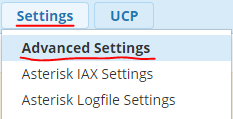
Locate the Voicemail Module section and change Provide IMAP Voicemail Fields to YES (you can simply search for keyword “imap” using your browser's in-page text search):

Submit your changes and then Apply Config
Mailbox Settings
Next, we need to add email mailbox usernames for each extension that has Voicemail enabled. There are two ways to do this:
Method #1
The manual way…by editing each extension individually from the Extensions module. This is fine for small deployments or those who only use a couple of central voicemail boxes. If you have or are planning a large deployment with dozens/hundreds/thousands of voicemail boxes, you will want to see Method #2 below for using the Bulk Handler. Small deployments can use either method, but may find Method #2 more cumbersome for so few mailboxes.
- Go to the Extensions page from the Applications menu and edit each extension like you normally would. You will now see two new fields on the Voicemail tab:
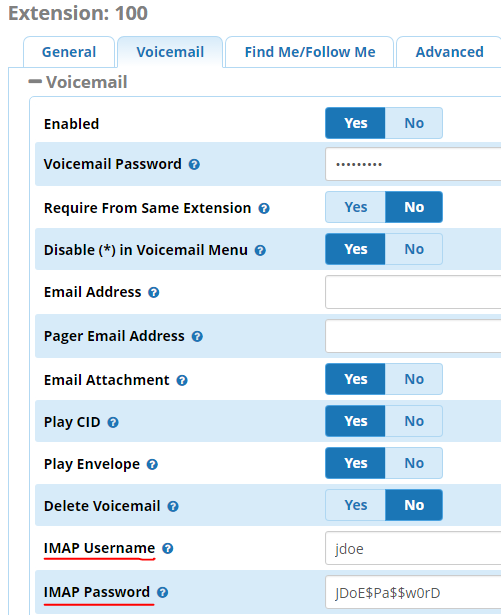
- If you are using a master “postmaster” account you setup at the beginning of this phase, enter the IMAP Username ONLY of the user who will be storing the Voicemails for this extension. DO NOT enter the IMAP Password here if you are using a “postmaster” account
- If you are NOT using a master “postmaster” account, you must enter BOTH the IMAP Username AND IMAP Password of the user who will be storing the Voicemails for this extension
Once this is finished, you'll want to Submit and Apply Config to make the changes live.
Method #2
The semi-automated way…using the Bulk Handler module to export your Extensions to an Excel-friendly CSV file you can enter the usernames/passwords and then import to FreePBX. This is the best way to handle a large number of Voicemail boxes and extensions. (This is also the fastest way to add/edit/manage a large number of extensions/DIDs/Inbound Routes/UCP Users/Blacklists/Contact Lists in a large deployment and is fairly robust!)
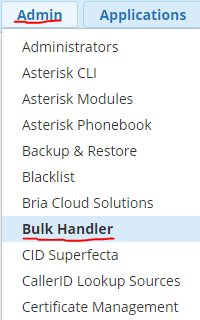
- Go to the Bulk Handler page from the Admin menu:
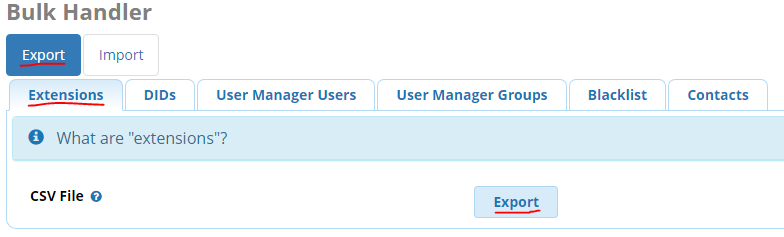
- You will start out on this page in Export mode on the Extensions tab. This is where we want to begin. Click the Export button next to CSV File. This will download a .csv file containing all of your extensions and their related settings. You can open this in Microsoft Excel or any other spreadsheet application for an easy to read/edit form. YOU MUST SAVE ANY RESULTING CHANGES AS A CSV FILE AT THE END TO IMPORT; OTHER FILE FORMATS ARE NOT SUPPORTED FOR IMPORT!
- Here is an example CSV file with a single sample Extension, scrolled to the proper field. For this implementation, you will be editing the
voicemail_optionsfield at the very end. In a spreadsheet application, it is column CF:

- You will see there are a bunch of options, separated by pipe | characters, in this field. We want to ADD to this list of options at the end, making sure to include pipes as shown:
- You MUST ADD
|imapuser=<username>to each extension with a Voicemail box

- If you are not using a “postmaster” account, you MUST ALSO add
|imappassword=<password>after the imapuser

- After adding the necessary options to Extensions with Voicemail enabled, save your changes to a NEW CSV file using UTF-8 format. This way you have a backup of current extension settings in case something goes wrong! You'll want to switch to Import mode on the Bulk Handler now and choose to Browse for your new CSV file and then Submit. This will upload and import your changes
- Once this is finished, you'll want to Apply Config to make the changes live
PHASE 3 - FULL RESTART OF SERVICES FOR ALL CHANGES TO TAKE EFFECT
THIS WILL INTERRUPT ALL CALLING SERVICES FOR 3-7 MINUTES!
You must do one of the following to finalize everything:
- Fully reboot your instance; or
- Restart all services with the following command via SSH:
fwconsole restart
That's it! Voicemails and Greetings will now be stored in your emails inboxes as you have selected above. As noted at the beginning of this guide, NO VOICEMAIL MESSAGES OR GREETINGS ARE COPIED TO THE IMAP SERVER. All mailboxes will be starting clean. At this time, you will want to test that everything is working as expected. Call one of your configured extensions and leave a Voicemail message. Then log into the email account configured for that extension and confirm that a new email message exists with the new Voicemail message in it. Once you have confirmed that Voicemail messages are storing on the IMAP server, test that you can record new Unavailable, Busy, and Vacation Announcements and Recorded Name on that extension. Those should also show up as new email messages in the email folder you assigned in general IMAP settings.
Once these tests are complete, your users are ready to record their new Announcements and such and you are ready to return to a full production environment.