Table of Contents
SSH Connection Tutorial
Connecting to Your Linux Instance from a Linux Workstation using SSH client
If you are a linux user, simply connect using the typical method, using your .pem keyfile and this command, substituting your own DNS name or Elastic IP after the @ symbol:
ssh -i my-key-pair.pem ec2-user@<ec2-123-45-67-89.compute-1.amazonaws.com>
Connecting to Your Linux Instance from Windows Using PuTTY
After you launch your instance, you can connect to it and use it the way that you'd use a computer sitting in front of you.
NOTE: After you launch an instance, it can take a few minutes for the instance to be ready so that you can connect to it. Check that your instance has passed its status checks - you can view this information in the Status Checks column on the Instances page.
The following instructions explain how to connect to your instance using PuTTY, a free SSH client for Windows. If you receive an error while attempting to connect to your instance, see Troubleshooting Connecting to Your Instance.
Prerequisites
Before you connect to your Linux instance using PuTTY, complete the following prerequisites:
- Install PuTTY: Download and install PuTTY from the PuTTY download page. Be sure to install the entire suite.
- Get the ID of the instance - You can get the ID of your instance using the Amazon EC2 console (from the Instance ID column). If you prefer, you can use the describe-instances (AWS CLI) or ec2-describe-instances (Amazon EC2 CLI) command.
- Get the public DNS name of the instance - You can get the public DNS for your instance using the Amazon EC2 console (check thePublic DNS column; if this column is hidden, click the Show/Hide icon and selectPublic DNS). If you prefer, you can use the describe-instances (AWS CLI) or ec2-describe-instances (Amazon EC2 CLI) command.
- Locate the private key - You'll need the fully-qualified path of the .pem file for the key pair that you specified when you launched the instance.
- Enable inbound SSH traffic from your IP address to your instance - Ensure that the security group associated with your instance allows incoming SSH traffic from your IP address. For more information, see Authorizing Network Access to Your Instances.
Converting Your Private Key Using PuTTYgen
PuTTY does not natively support the private key format (.pem) generated by Amazon EC2. PuTTY has a tool named PuTTYgen, which can convert keys to the required PuTTY format (.ppk). You must convert your private key into this format (.ppk) before attempting to connect to your instance using PuTTY.
To convert your private key
Start PuTTYgen (for example, from the Start menu, click All Programs > PuTTY > PuTTYgen).
- Under Type of key to generate, select SSH-2 RSA.

- Click Load. By default, PuTTYgen displays only files with the extension .ppk. To locate your .pem file, select the option to display files of all types.

- Select your .pem file for the key pair that you specified when you launch your instance, and then click Open. Click OK to dismiss the confirmation dialog box.
- Click Save private key to save the key in the format that PuTTY can use. PuTTYgen displays a warning about saving the key without a passphrase. Click Yes.
NOTE: A passphrase on a private key is an extra layer of protection, so even if your private key is discovered, it can't be used without the passphrase. The downside to using a passphrase is that it makes automation harder because human intervention is needed to log on to an instance, or copy files to an instance.
- Specify the same name for the key that you used for the key pair (for example, my-key-pair). PuTTY automatically adds the .ppk file extension.
Your private key is now in the correct format for use with PuTTY. You can now connect to your instance using PuTTY's SSH client.
Starting a PuTTY Session
Use the following procedure to connect to your Linux instance using PuTTY. You'll need the.ppkfile that you created for your private key. If you receive an error while attempting to connect to your instance, see Troubleshooting Connecting to Your Instance.
To start a PuTTY session
- (Optional) You can verify the RSA key fingerprint on your instance by using one of the following commands on your local system (not on the instance). This is useful if you've launched your instance from a public AMI from a third party. Locate the SSH HOST KEY FINGERPRINTS section, and note the RSA fingerprint (for example, 1f:51:ae:28:bf:89:e9:d8:1f:25:5d:37:2d:7d:b8:ca:9f:f5:f1:6f) and compare it to the fingerprint of the instance.
aws ec2 get-console-output --instance-id instance_id

ec2-get-console-output instance_id
NOTE: The SSH HOST KEY FINGERPRINTS section is only available after the first boot of the instance.
- Start PuTTY (from the Start menu, click All Programs > PuTTY > PuTTY).
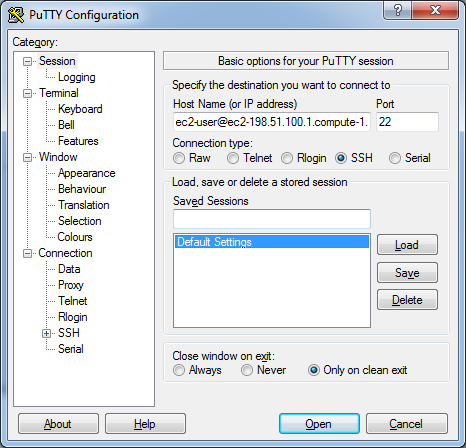
- In the Category pane, select Session and complete the following fields:
- In the Host Name box, enter ec2-user@public_dns_name
- Under Connection type, select SSH
- Ensure that Port is 22
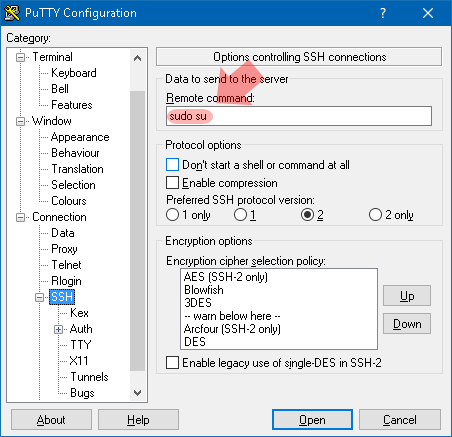
- In the Category pane, expand Connection, choose the SSH section and enter sudo su in the Remote command text box:
WARNING: By setting this option, you will be automatically logged in with root privileges and anything you do once logged in will be performed as root. You can damage your instance if you execute the wrong commands.
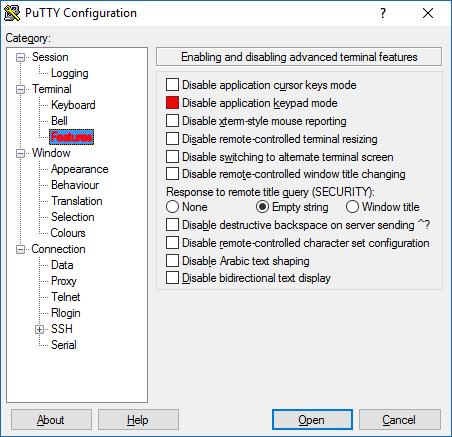
- Expand Terminal, choose the Features section, and select the Disable application keypad mode checkbox. This will allow you to use the number keypad on the right of your keyboard to select EXPERT-MODE menu options:
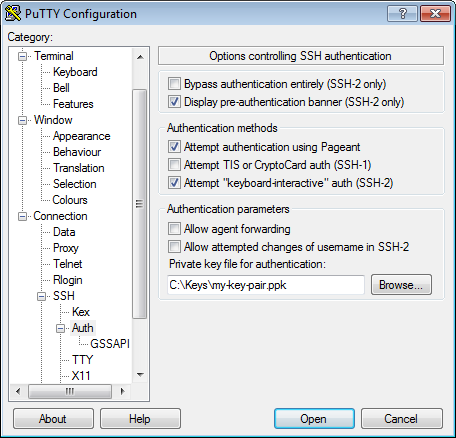
- In the Category pane, expand SSH, and then select Auth. Complete the following:
- Click Browse.
- Select the .ppk file that you generated for your key pair, and then click Open.
- (Optional) If you plan to start this session again later, you can save the session information for future use. Select Session in the Category tree, enter a name for the session in Saved Sessions, and then click Save.
- Click Open to start the PuTTY session.
- If this is the first time you have connected to this instance, PuTTY displays a security alert dialog box that asks whether you trust the host you are connecting to.
- (Optional) Verify that the fingerprint in the security alert matches the fingerprint that you obtained in step 1. If these fingerprints don't match, someone might be attempting a “man-in-the-middle” attack. If they match, continue to the next step.
- Click Yes. A window opens and you are connected to your instance.
NOTE: If you specified a passphrase when you converted your private key to PuTTY's format, you must provide that passphrase when you log in to the instance.
If you receive an error while attempting to connect to your instance, see Troubleshooting Connecting to Your Instance.